Request Movies & TV (Seerr)
Seerr (seerr.dev ) is how you ask for something to be added to Plex — a movie, a season, an entire TV series. It’s the successor to the older Overseerr/Jellyseerr tools, combined into one app, at the same address you may already know: request.scootr.ca.
Signing in
Seerr uses Sign in with Plex — no separate account needed. Go to request.scootr.ca and click Sign in with Plex.
Requesting something
- Search for the title using the search bar at the top.
- Open the result and click Request.
- For TV shows, you can request the whole series or pick specific seasons.
- Once approved, the request moves into the download queue automatically — no further action needed from you.
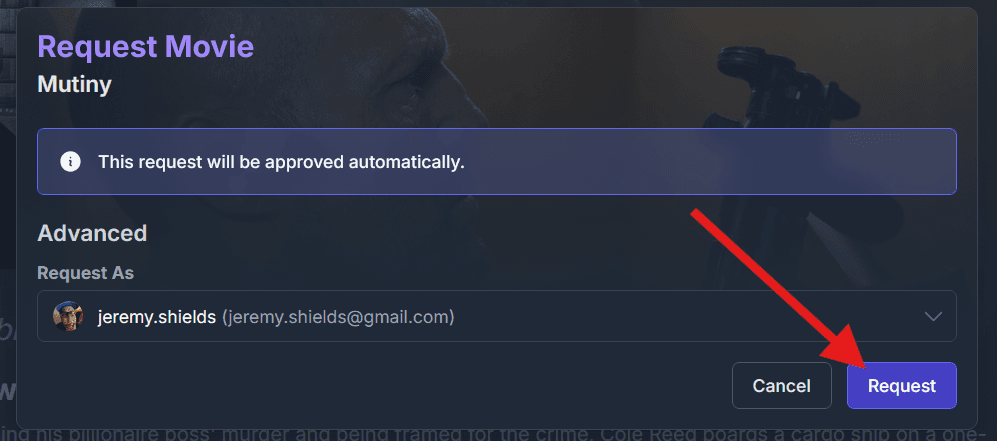
Requests are typically approved automatically. If a title needs manual review (for example, something unusually large), it’ll just take a little longer — you don’t need to ask about it.
Checking on a request
Your requests and their status (pending, processing, available) show up under your profile in Seerr. Once a request flips to Available, it’s already in Plex — give it a minute to show up if you’re browsing at the exact same time.
It’s already in Plex, but greyed out or missing quality
That means it’s been requested but hasn’t finished downloading yet. Check back later, or look at the request’s status in Seerr.
Stuck, or a request seems stalled for days? Check the service status page, then ask in Discord if everything still looks healthy.
Going further
Seerr has its own settings for notifications, request limits, and more — see the official Seerr documentation for the full picture.