Retro Games (RomM)
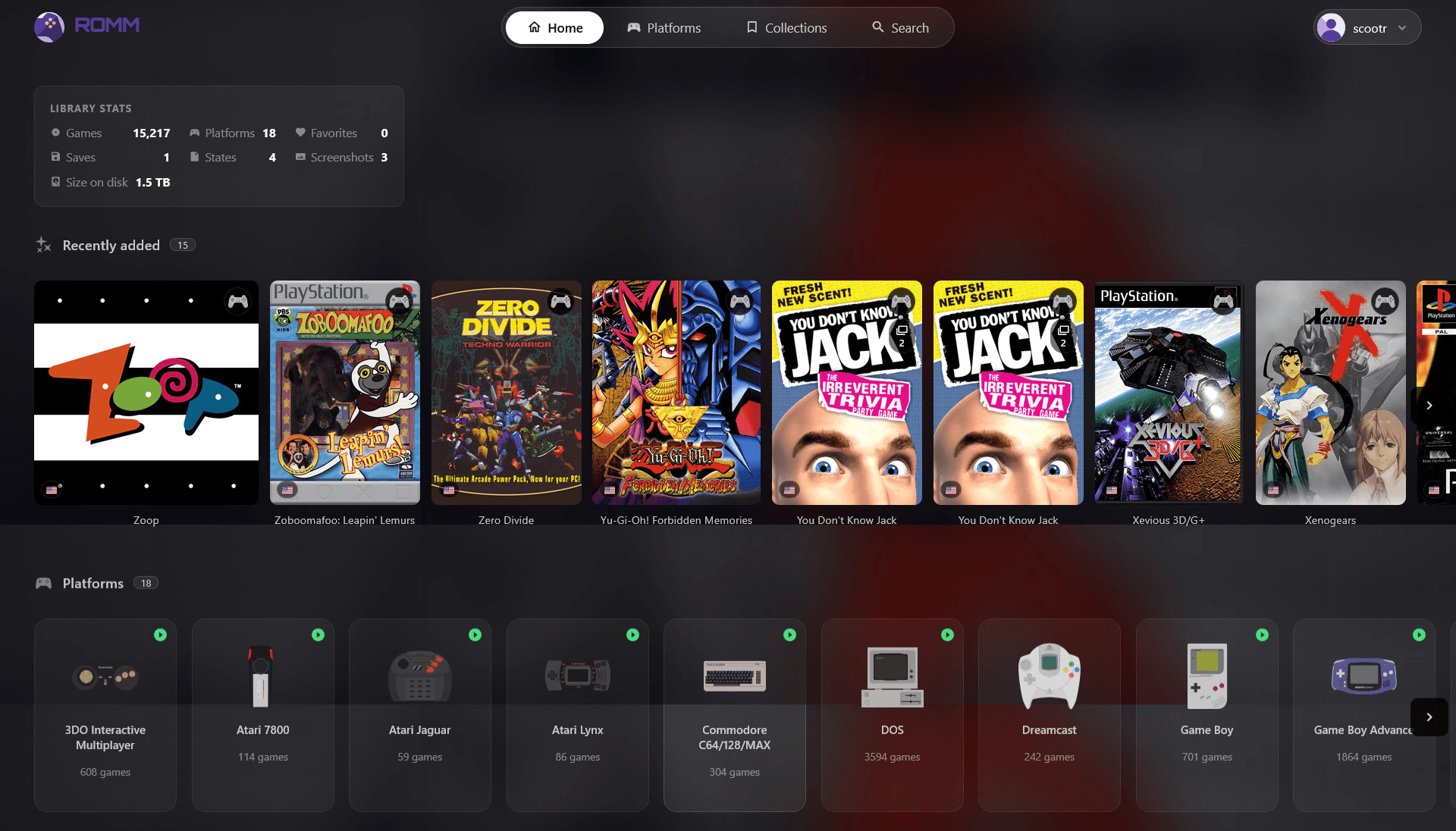
RomM is the retro game library — over 15,000 games across 20+ platforms, browsable and playable from your browser at games.scootr.ca.
Signing in
RomM uses Sign in with Plex. Head to games.scootr.ca and sign in with your Plex account.
Browsing the library
Games are organized by platform (NES, SNES, Game Boy, PS1, and so on). Use the search bar to jump straight to a title, or filter by platform from the sidebar. RomM’s interface was redesigned in version 5, so it now works with a mouse, touch, keyboard, or gamepad. If you remember the older look, things may have moved around.
A game’s page has more than a Play button:
- Manuals and walkthroughs — where available, these sit alongside the game. Walkthroughs remember where you left off.
- Soundtracks — if a game has its soundtrack in the library, you can play it from the game’s page. The Jukebox plays music from the whole library in a mini player that follows you around the app.
- Similar games — suggestions based on what’s in the library and what you play. You may also see a Recommended for you row on the home screen.
- Previous / next buttons for moving between games without going back to the list.
You can also sort and filter by how long a game takes to beat (based on HowLongToBeat), which helps when you only have a weekend.
Playing a game
You have two options for most titles:
- Play in the browser — open a game’s page and hit Play. RomM runs an in-browser emulator (EmulatorJS), so nothing to install. Works best on a computer; touch controls are more limited on mobile.
- Download and use your own emulator — download the ROM file from the game’s page and load it in an emulator or handheld of your choice (RetroArch, a Miyoo/Anbernic device, etc.).
Some platforms use a different in-browser player: older Windows (3.x / 95 / 98) games run on js-dos, and PICO-8 games have their own player that supports keyboard, gamepad, or touch.
Saves & save states
When you play in the browser, your saves sync to the server automatically, a few seconds after the game writes them, so a closed tab or crashed browser won’t lose your progress. Saves and save states belong to your account, so you can pick up on any device as long as you play through the browser.
- RomM keeps a history of your recent saves, each with a screenshot from the moment it was made. To go back to an earlier save, use the Load save or state option in the game’s menu. It replaces the old Export / Import save buttons.
- You can share a save or save state with other users. This is handy for passing along an unlocked file or a tricky spot.
- For multi-disc games, switch discs from the emulator’s own menu instead of reloading the game.
Exception: saves from js-dos (the Windows 3.x / 9x player) stay in that browser only and aren’t synced to the server. Play those games on the same browser each time, and don’t clear its site data.
Extras
- CRT mode adds an optional old-TV scanline filter for that authentic 90s look.
- If a game runs badly, you can change the emulator core in the player settings. RomM remembers your choice on that device.
Controllers
Most modern USB and Bluetooth controllers work with the browser emulator once paired to your device — connect it before opening the game page. Since version 5, a controller can also navigate RomM itself, not just the game.
If buttons aren’t doing what you expect, RomM has a controller debug view that shows your button presses as they happen, so you can tell whether the controller or the mapping is the problem.
Something not loading, or a platform missing entirely? Check service status first, then flag it in Discord.
Going further
RomM has a lot more under the hood: collections, netplay, companion apps like Argosy Launcher and Playnite (which can pair with your account by scanning a QR code), and more. See the official RomM documentation for the full feature set.