eBooks, Audiobooks & Comics (Book Orbit)
Book Orbit is where you browse, read, and listen to everything in the eBook, audiobook, and comics library, all in one place — at books.scootr.ca.
Signing in
Book Orbit uses Sign in with Plex. Go to books.scootr.ca and sign in with your Plex account.
Reading & listening
Open a title and pick up right where you left off — Book Orbit tracks your progress across formats and devices. eBooks, audiobooks, and comics all live side by side, so there’s no separate app to switch to depending on what you’re in the mood for.
A few things worth knowing about:
- Switch between reading and listening — when a book has both an eBook and an audiobook, turn on read-aloud progress sync from the book’s Details tab and both stay on the same spot (along with Kobo and KOReader). Book Orbit tells you if a particular book can’t use it, for example when the two editions don’t line up.
- Read-along books — some eBooks have recorded narration built in. These play in the reader with the current sentence highlighted, and you can tap any sentence to start listening from there.
- Highlights and notes in PDFs — PDFs now support highlights and notes in the web reader, just like eBooks.
- Comics roll into the next issue — reaching the last page of a comic can take you straight to the next issue in the series, and series pages show which volumes you’ve read and which are missing.
- Public collections — some collections are shared with everyone, so you may see a few you didn’t make. Only the person who created one can change it.
Requesting something new
Book Orbit now has its own Requests feature, currently in beta — look for the Request a book tab. Search by title or author, pick the medium (eBook, audiobook, or comic), and submit the request without leaving Book Orbit. If someone’s already requested the same book in the same format, you can add yourself to that request instead of creating a duplicate. In the iPhone app you can also scan a book’s ISBN barcode to find it.
If you don’t plan to use Requests, you can hide the tab and its notifications in your account settings. Requests you’ve already made keep going either way.
This is in beta and isn’t replacing Shelfmark yet — think of it as an early look you’re welcome to try. Fulfillment is manual for now: a request gets searched for and either fetched or fulfilled by hand. You’ll get a notification in Book Orbit when it’s approved, available, or needs a second look.
If you’d rather not sign into a separate app, Book Orbit’s Requests tab covers the same ground as Shelfmark — use whichever you prefer. See what happens after you request for how a Shelfmark request makes its way into Book Orbit via the book dock.
On iPhone, iPad & Apple Watch
Book Orbit has an official iOS app — BookOrbit: The Official App on the App Store. It’s free to download and works on iPhone and iPad, with an Apple Watch companion for audiobooks. It needs iOS / iPadOS 26 or later.
To connect it to scootRflix:
- Install the app and open it.
- When it asks for a server, enter
https://books.scootr.ca. - Tap the Plex sign-in button. iOS will ask whether the app can use the scootRflix sign-in page to sign in. Tap Continue, then sign in with Plex the same way you do on the website.
The app’s Plex sign-in is new and hasn’t been tested on every device yet. If you can’t sign in, the website still works. Open a ticket in Discord #support or email flix@scootr.ca, say you’re using the iOS app, and include any error message or a screenshot.
What you get on top of the website:
- Offline downloads — download eBooks, comics, PDFs, and audiobooks for a flight or commute. Progress, highlights, and notes sync back to the server the next time you’re online.
- A proper audiobook player — chapters, sleep timer, playback speed, and CarPlay. On Apple Watch, you can download audiobooks and leave your phone at home.
- Read aloud — have an eBook read to you, or follow along with books that include recorded narration.
- Notebook & reading timeline — your highlights, notes, and bookmarks gathered in one place, plus a day-by-day history of what you read and listened to across all your devices.
- Requests on the go — scan an ISBN barcode, submit or join a request, and follow its progress.
- Built for iPad — two-page spreads, side panels, keyboard shortcuts, and trackpad support.
The app is free for reading and listening. Some extras — unlimited downloads, Apple Watch listening, advanced text-to-speech, and advanced reading stats — need BookOrbit Premium, an optional in-app purchase sold by the app’s developer. scootRflix doesn’t need it and doesn’t get anything from it, so it’s entirely up to you.
There’s no Android app yet. On Android, use books.scootr.ca in your browser, or point an OPDS reader app or KOReader at Book Orbit (see integrations).
Customize your experience
Book Orbit’s own Settings cover the look, feel, and behavior of your reader — themes, layout, and reading defaults are all yours to adjust per-device.
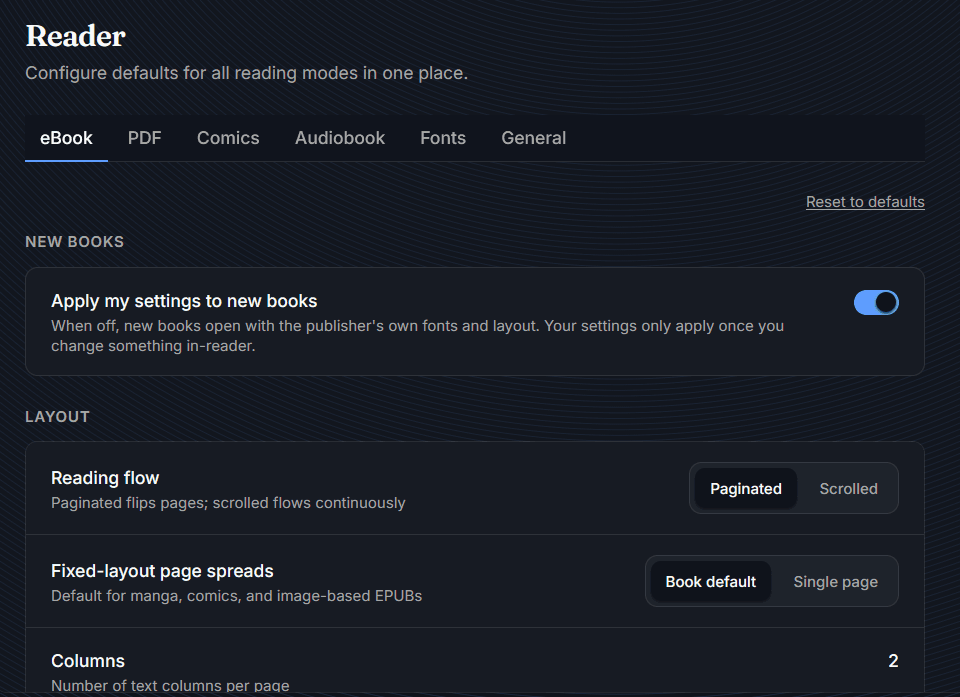
You can also adjust paragraph spacing and indentation for eBooks. By default, Book Orbit keeps the publisher’s formatting. Set your defaults once and change them for individual books when you need to. On the iOS app, a tune bar lets you change these settings without leaving the page.
For eBooks specifically, there’s a shared library of extra reader fonts available server-side — things like Bookerly, Literata, Atkinson Hyperlegible Next, OpenDyslexic, and Readerly — so you can pick one that reads best for you without needing to upload your own.
Integrations
Book Orbit connects to a few outside tools if you want to use them:
- Kobo Sync — syncs supported books to a Kobo e-reader, along with your reading position, bookmarks, and highlights.
- KOReader — two-way reading progress sync with the KOReader app. Reading time from KOReader and Kobo also counts toward your Book Orbit reading stats and streaks.
- Hardcover Sync — syncs your reading activity to a Hardcover account.
- OPDS — a private catalog feed you can point any OPDS-compatible reader app at.
- Email delivery — send a book straight to your Kindle (or any other email-based delivery workflow).
Setup steps for each of these live in Book Orbit’s own docs — see what is BookOrbit for the full walkthrough.
Your reading privacy
Book Orbit deliberately doesn’t turn into a reading-surveillance tool. Under Settings → Account → Privacy & Sharing, you control exactly what an admin (including scootR) can see about your reading:
- Private — no reading statistics or history are visible to admins at all.
- Share summary — admins see aggregate reading patterns only, without titles, authors, series, or narrators.
- Share detailed insights — admins can see your recent and top books, authors, series, genres, and narrators.
Sharing is always opt-in and never required to use Book Orbit. If you do share, any time an admin looks at your shared profile, that access is logged and visible to you under Profile access history — so it’s never hidden monitoring.
See account activity & privacy for the full details.
Going further
For everything else Book Orbit can do, see the official Book Orbit documentation .